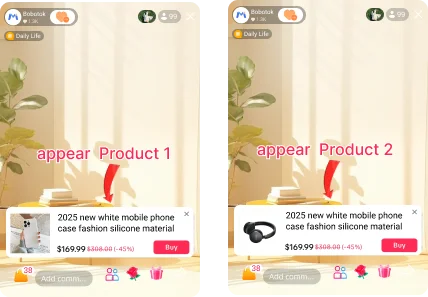
Cycle Pin
The cycle pin makes product cards pop up and disappear on the rhythm you set, so showcases continue even while the host is busy.
Cycle pin for a single product
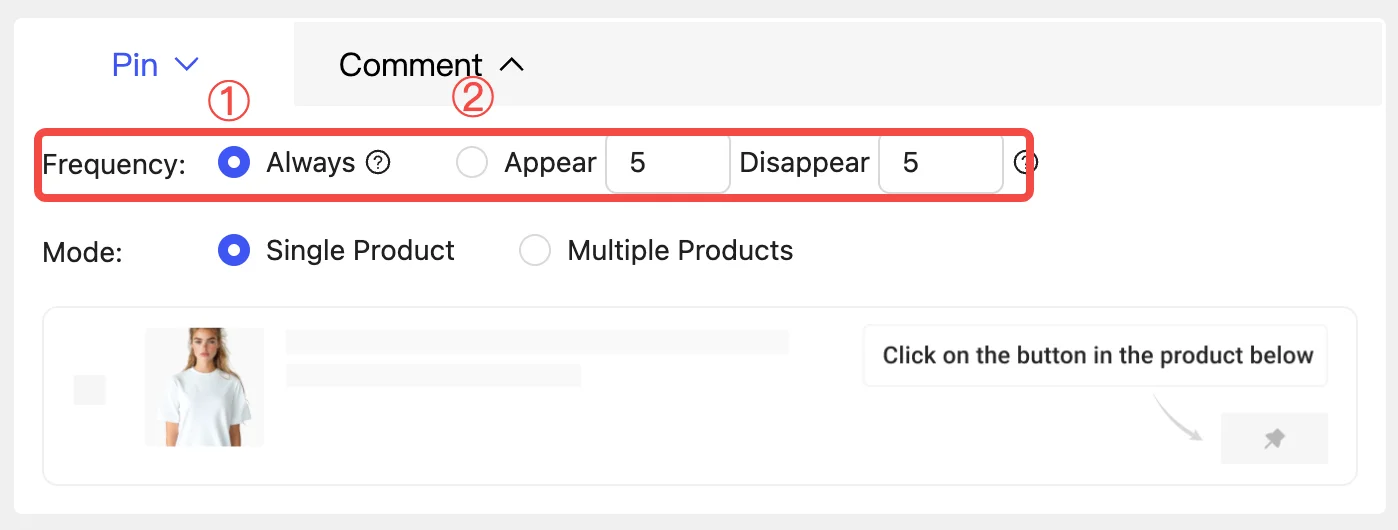
Step 1. Set the cycle frequency
There are two modes to choose from:
- Always: keep the product card pinned.
- Appear and disappear replacement: pin for N seconds, cancel for M seconds, and repeat.
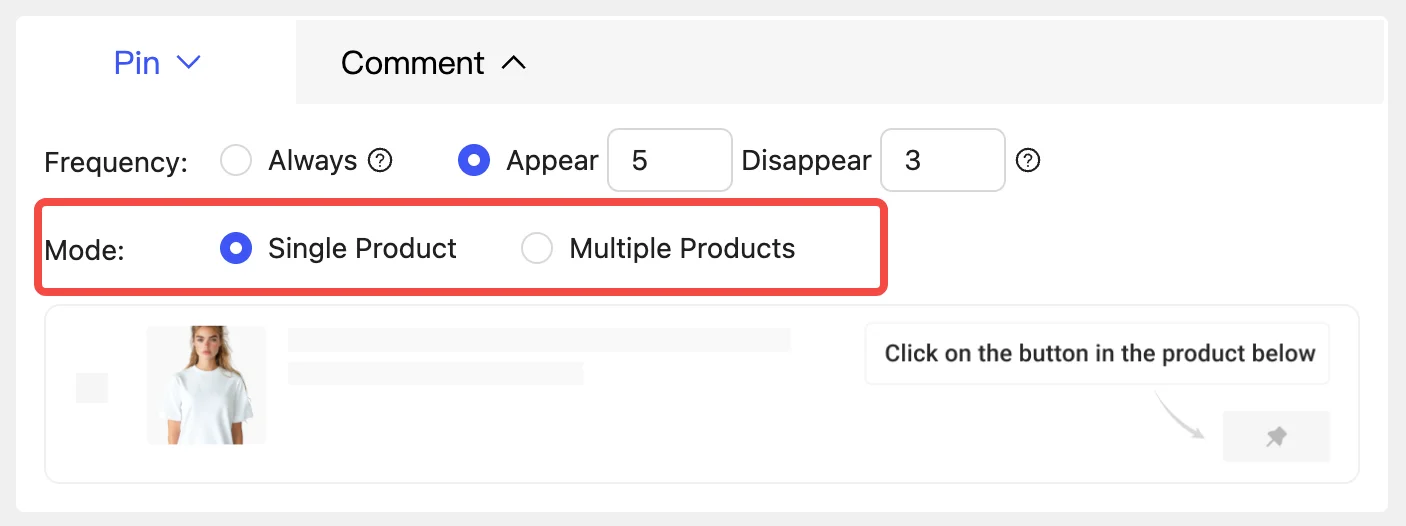
Step 2. Set the mode: Single Product
There are two modes to choose from:
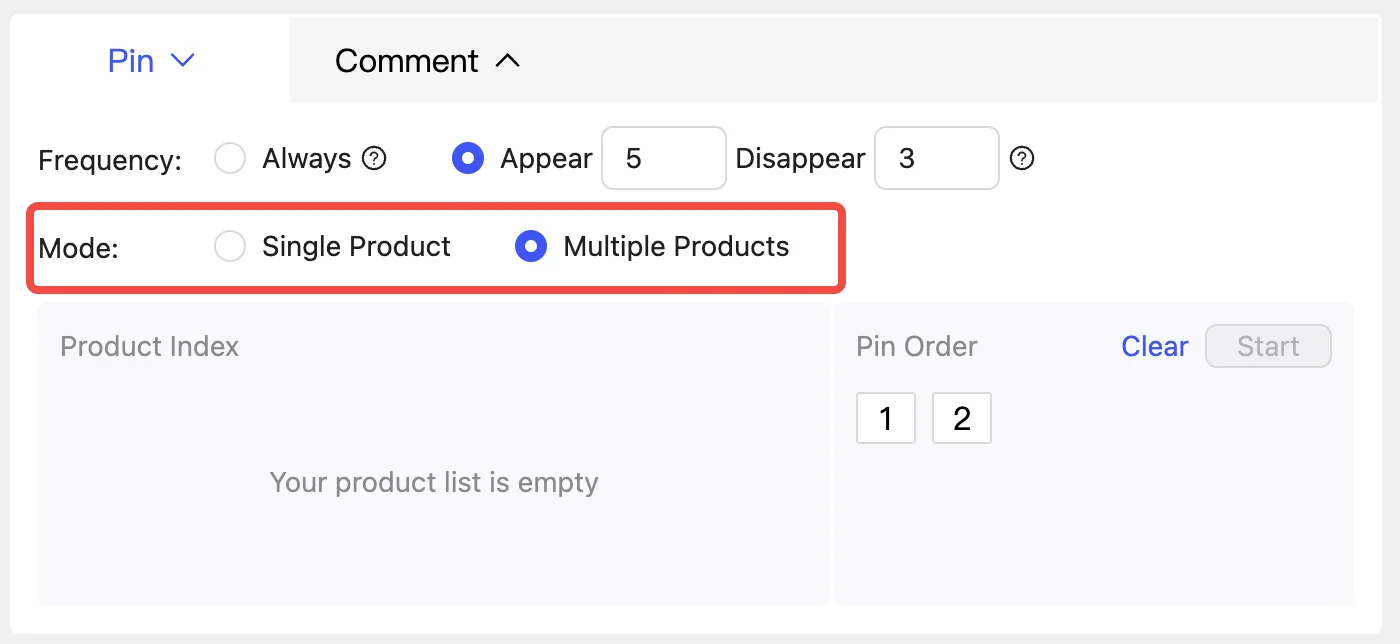
- Single product: cycle the card of the one product you click below.
- Multiple products: rotate the cards of two or more products by their order numbers.
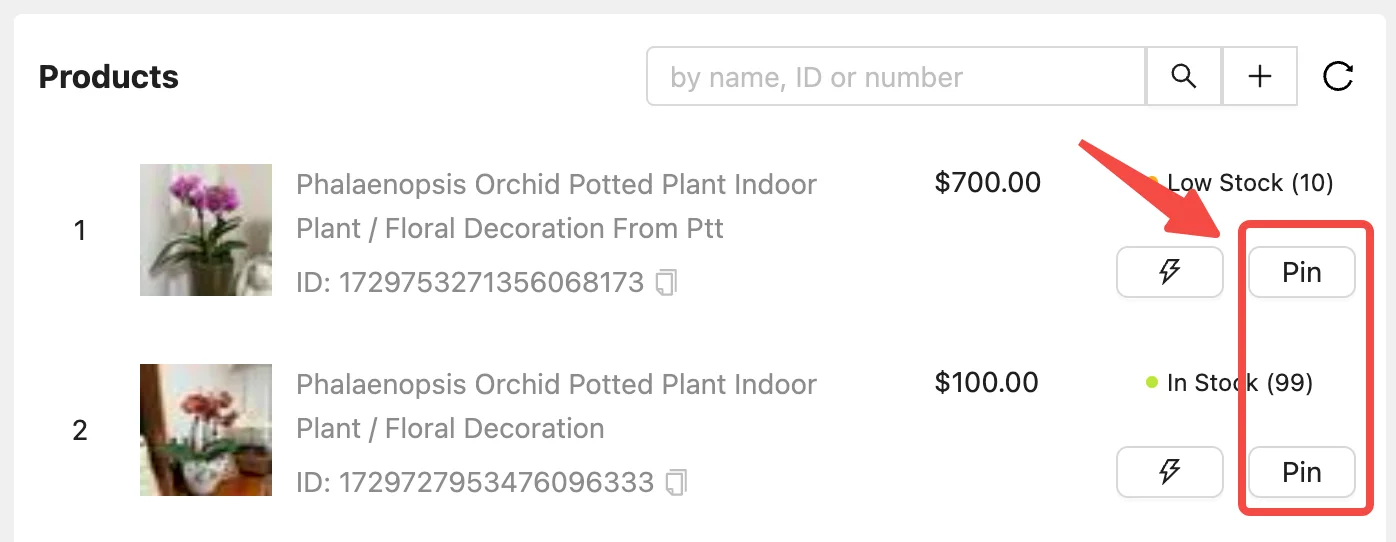
Step 3. Start the cycle pin
Find the product in the product panel and click its "Pin" button.
In the live room you will then see the product card appearing and disappearing in a loop.

Cycle pin for multiple products
Step 1. Set the cycle frequency
Same as for a single product: choose "Always" or "Appear and disappear replacement".
Step 2. Set the mode: Multiple Products
Step 3. Select products and start the cycle pin
Click on the left to assign order numbers to the products joining the pin queue — one number can be selected multiple times. Click on the right to deselect.
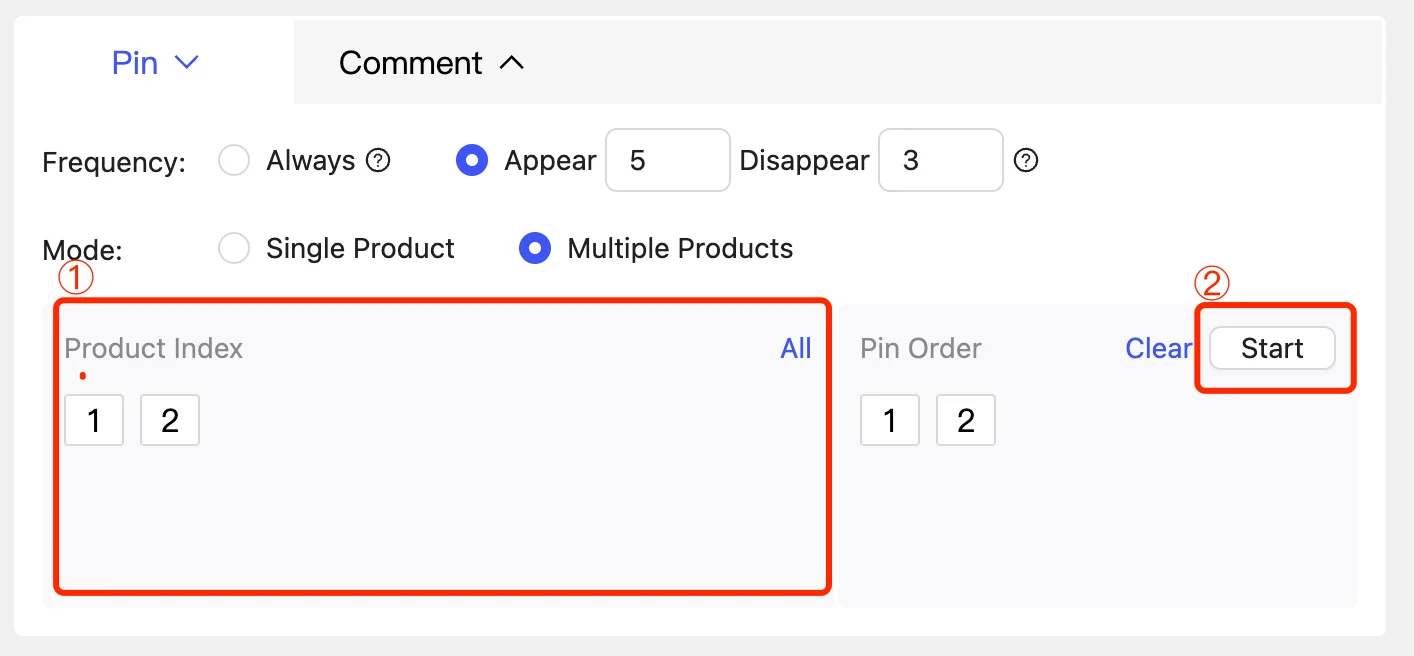
In the live room you will then see the product cards appear in rotation.